Arabic Text in Photoshop, Illustrator and InDesign: Setup Guide
Arabic text in Photoshop no longer depends on a hidden preference: since version 23.0, the Unified Text Engine joins the letters and orders mixed Arabic and Latin text on its own. What still trips people up is everything around it: paragraph direction, Hindi versus Arabic digits, kashida justification, old PSD files, and Illustrator and InDesign, which follow their own rules. This guide gives the exact menu paths for current Creative Cloud versions (checked against Adobe’s documentation in October 2026), then the settings we would use for a poster, a book and a social post.
Three apps, three text engines
Adobe apps do not share one text engine, so a fix that works in Photoshop says nothing about InDesign. The useful question for each app is where it shapes Arabic and which edition shows the right-to-left controls.
| App | What shapes Arabic | Where you switch it on | Full RTL controls |
|---|---|---|---|
| Photoshop 23.0+ | Unified Text Engine (HarfBuzz shaping, FriBidi for mixed directions) | Nothing to switch on for new type layers | Shown without setup in 23.0+; Adobe lists the Middle Eastern and North African French editions as fully supported |
| Illustrator | Middle Eastern & South Asian composer | Paragraph panel menu | Middle Eastern (English interface) or North African French edition |
| InDesign | Adobe World-Ready Paragraph Composer (HarfBuzz by default since InDesign 19.0, October 2023) | Paragraph panel menu, or in a paragraph style | Middle Eastern (English interface) or North African French edition |
To get one of those editions, open the Creative Cloud desktop app, click the Account icon, then Preferences › Language, and pick the Middle Eastern edition in the Default install language list. The change only applies to apps you install afterward: uninstall the app and install it again. The Middle Eastern edition keeps an English interface, so the labels in this guide stay the same.
Arabic text in Photoshop (23.0 and later)
If a tutorial tells you to open Preferences › Type and choose the Middle Eastern and South Asian text engine, it describes Photoshop 22 and earlier. Adobe removed that switch in Photoshop 23.0 when the Unified Text Engine arrived: new type layers support every script by default, as Adobe’s Unified Text Engine overview explains.
- Install the font first. Unzip it and install every weight, then restart Photoshop if it was open. Our guide to installing Arabic fonts covers Windows and macOS, including the per-user trap.
- Create a type layer and type or paste your Arabic. On Windows, Adobe also recommends installing the Windows language and font packs for the language you work in.
- Set the direction. In the Paragraph panel, or in Window › Properties for the selected type layer, choose Right-To-Left.
- Open the Middle Eastern controls. They live in two places with the same options: the Middle Eastern Features section of the Properties panel, and the Character or Paragraph panel menu › Middle Eastern Features.
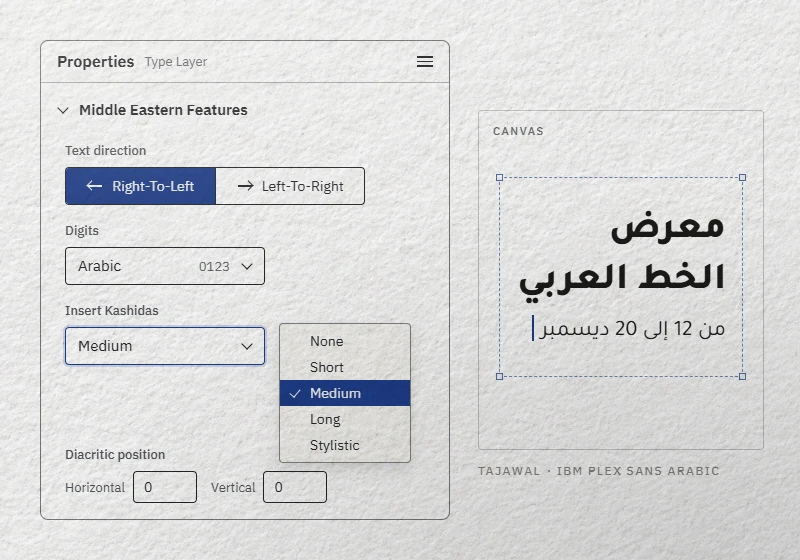
Digits: “Arabic” means 0123
Adobe’s naming surprises many designers. In the Digits menu, Arabic gives Western digits (0123), Hindi gives Arabic-Indic digits (٠١٢٣) and Farsi gives the Persian forms, which only differ from 4 onward (٤٥٦ in Hindi, ۴۵۶ in Farsi). Adobe notes that Arabic editions default to Hindi digits. Pick per audience: the Maghreb mostly uses 0123, Egypt and the Gulf often use ٠١٢٣. Check the font too: Tajawal has Western and Arabic-Indic digits but no Persian ones, so Farsi digits fall back to another font.
Diacritics, ligatures and kashida
- Diacritics. Adjust Horizontal Diacritic Position and Adjust Vertical Diacritic Position move the vowel marks of the selected text. Use them only when marks collide at a large size; a well-built font such as Amiri already positions them with its own mark tables.
- Ligatures. Standard and Discretionary Ligatures sit at the bottom of the Character panel. They only do something if the font has those features. We read the feature tables of our files: Amiri keeps its Arabic ligatures in the standard and required sets, so the Discretionary button changes nothing there.
- Justification alternates. This toggle swaps in wider letterforms and needs a font that includes them. Among our free fonts, Aref Ruqaa carries that feature; Amiri, for example, does not.
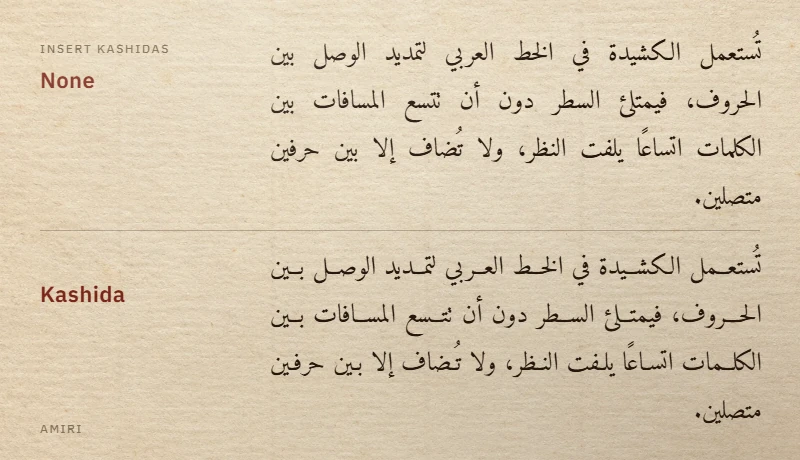
- Kashida. Instead of widening word spaces, kashida stretches the joins between letters. Set the paragraph to Justify (all lines), then choose None, Short, Medium, Long or Stylistic in Insert Kashidas, at the lower right of the Paragraph panel or in the Properties panel. For a few selected letters, use Type › Language Options › Kashidas.
Old PSD files and the legacy layout
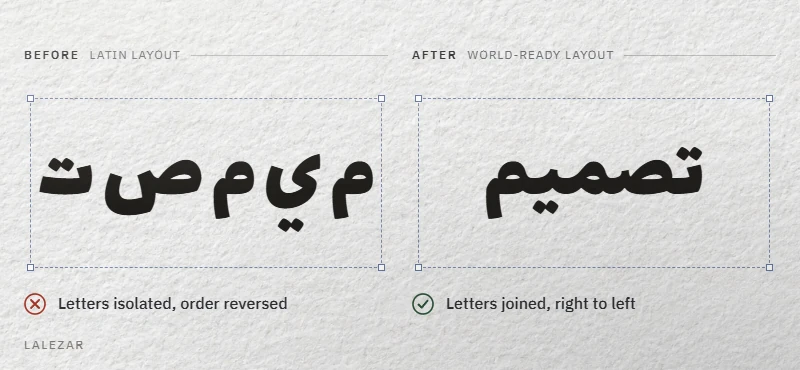
A PSD made before 23.0 keeps its old type layers. Adobe says you can switch such a layer to the legacy composer, or back, from the Paragraph panel menu. Users on Adobe’s forums see the two entries as World-Ready Layout and Latin and East Asian Layout. If an old layer shows separated or reversed Arabic, select it and choose World-Ready Layout. Also note that Photoshop 23.0 dropped support for Type 1 fonts and for the old “Arabic Axt” fonts: a file built on them opens with missing fonts.
Arabic in Illustrator
Illustrator still asks for a composer. Its guide to complex scripts gives this sequence:
- Open Edit › Preferences › Type (Windows) or Illustrator › Preferences › Type (macOS) and check Show Indic Options. This exposes the composers in the standard edition.
- Select the text, open Window › Type › Paragraph and choose, from the panel menu, Middle Eastern & South Asian Every-line Composer for paragraphs or Middle Eastern & South Asian Single-line Composer for short lines.
Adobe states that direction, digit types, kashida and diacritic controls belong to the Middle Eastern and North African French editions. In other editions you get joined letters, but not the full right-to-left toolset. In those two editions, kashida only works on area type, not on point type: convert the text with Type › Convert To Area Type, choose Kashidas in the Character panel menu, set a justified alignment, then pick None, Short, Medium, Long or Stylistic in Insert Kashidas.
Before you send a logo or a poster to print, either package the font with the file (the fonts in this guide are under the SIL Open Font License, which allows it) or convert the type with Type › Create Outlines. Outlines freeze the text: keep a live copy on a hidden layer.
Arabic in InDesign
InDesign is the right tool for anything longer than a page. Its controls are the most complete, spread across three panels.
- Composer. Window › Type & Tables › Paragraph, panel menu, then Adobe World-Ready Paragraph Composer. Set it in your paragraph styles rather than by hand.
- Paragraph direction. In the same panel, click the Right-to-Left Paragraph Direction icon.
- Story direction. For multi-column layouts, Window › Type & Tables › Story, then Right-to-Left Story Direction, so columns flow from right to left.
- Character direction. For a date or a Latin brand name inside an Arabic line, select it and use the Character panel menu › Character Direction › Left-to-Right.
- Digits. Character panel menu, Digits: Arabic, Hindi or Farsi. To type Arabic-Indic digits automatically, turn on Use Native Digits When Typing in Arabic Scripts in Edit › Preferences › Advanced Type (InDesign › Preferences › Advanced Type on macOS).
The direction and story controls need the Middle Eastern or North African French edition. InDesign also carries two book-specific tools:
- Diacritic Positioning (Character panel menu) offers OpenType (adjustment from base character), OpenType (positive adjustment is up), None, Loose, Normal and Tight, plus Horizontal and Vertical offsets. Keep an OpenType setting with fonts that ship mark positioning.
- Change Arabic Diacritic Color is a saved query in Edit › Find/Change. Use it to print vowel marks in a second color in a school book or a Qur’anic text.
If a document from an older version suddenly sets differently, the shaping engine may be the reason: HarfBuzz has been the default since InDesign 19.0, and Edit › Preferences › Advanced Type › Enable Legacy Text Shaping for Adobe World-Ready Composer brings back the old one. Text pasted from Word keeps its direction and alignment, according to Adobe. Prepare the file well upstream: our guide to Arabic in Microsoft Word covers fonts, direction and digits on the Word side.
Settings for a poster, a book and a post
Kashida is the Arabic way to justify, and it only applies to justified paragraphs. The difference shows most in a narrow column:
| Setting | Event poster | Book or report | Social post |
|---|---|---|---|
| App | Illustrator or Photoshop | InDesign | Photoshop |
| Font | Lalezar or Reem Kufi for the headline | Amiri for body text | Tajawal, Bold for the hook, Regular for details |
| Alignment | Centered or right | Justified, last line aligned right (Justify all lines also stretches the last line) | Right |
| Kashida | None (avoid stretching display letters) | Short or Medium | None |
| Digits | Match the audience | One system for the whole book | Match the audience |
| Watch out for | Tracking (gaps in the joins) and Faux Bold (clogged counters) | Story direction and paragraph styles | Line length on small screens |
For display type, never add tracking to Arabic: letter spacing breaks the connections that kashida is meant to stretch. Use a real heavy weight rather than Faux Bold, which thickens outlines and can fill small counters.
When Arabic still breaks in an Adobe app
| Symptom | Likely cause | Fix |
|---|---|---|
| Letters separated and reversed in an old PSD | Type layer still uses the legacy layout | Paragraph panel menu, World-Ready Layout entry (label reported by users) |
| Letters separated in Illustrator or InDesign | Latin composer on that paragraph | Middle Eastern & South Asian composer (Illustrator) or Adobe World-Ready Paragraph Composer (InDesign) |
| Text pasted from a website comes out backward | The source was “fixed” for old software: reversed, with presentation-form letters | Copy the text from a clean source, or retype it |
| Font missing after opening a file | Type 1 or Arabic Axt font, unsupported since Photoshop 23.0 | Replace it with an OpenType font |
| Numbers show as ٠١٢٣ unexpectedly | Digits set to Hindi (the default of Arabic editions) | Digits › Arabic |
| Insert Kashidas does nothing | Paragraph not justified (Photoshop wants Justify (all lines)), or point type in Illustrator | Justify the paragraph; convert to area type |
| A date or Latin word jumps to the wrong side | Mixed directions in one line | Character Direction › Left-to-Right on that run |
The same symptoms outside Adobe, in Word, a browser or a video editor, have other causes: our troubleshooting guide shows how to fix disconnected or reversed Arabic app by app.
No Arabic keyboard on your machine? Type the text in our online Arabic keyboard and paste it into the type layer: it produces standard Unicode, which every engine above shapes correctly.
Free fonts that behave well in Adobe apps
All the fonts below are TrueType files with Arabic OpenType shaping and mark positioning, under the SIL Open Font License 1.1, so you can package them with a client file.
- Amiri: classical Naskh for books, with stylistic sets and cursive attachment. Regular and Bold.
- Tajawal: a sans with seven weights, from ExtraLight to Black, for posts and interfaces.
- Reem Kufi: geometric Kufi for headlines, delivered as a variable font. In Photoshop, its weight slider sits behind the Variable font settings icon, in the Character section of the Properties panel.
- Lalezar: one dense poster weight; keep it for a few words.
- Aref Ruqaa: handwritten Ruq’ah with justification alternates, for greetings and quotes.
The full selection by job is on our page of Arabic fonts for Photoshop and Illustrator. For quick social posts made in Canva rather than Photoshop, see our guide to Arabic fonts in Canva.