Arabic in Microsoft Word: Fonts, Right-to-Left, Diacritics and Sharing
How to write Arabic in Word, in short: add Arabic as an editing language and as a keyboard, then set your Arabic font in the Complex scripts part of the Font dialog (Ctrl + D), the only place where you see and set both fonts of your text. Direction is a paragraph setting, and before you send the file, check that its Arabic font may be embedded, or send a PDF. This guide covers Word for Microsoft 365 on Windows and Mac.
Turn on Arabic in Word
- Editing language (Windows). Go to File › Options › Language. Under the Office authoring languages, choose Add a Language, pick an Arabic variant (Arabic (Egypt), Arabic (Saudi Arabia)…), select it and click Set as Preferred if Arabic is your main language. Restart Word. The Right-to-left paragraph button and the complex script settings only appear once a right-to-left language is enabled.
- Keyboard (Windows). In Windows Settings › Time & language › Language & region, add Arabic. Switch layouts with Win + Space or Alt + Shift.
- Keyboard (Mac). In System Settings › Keyboard › Text Input, click Edit, then the Add button (+), and add Arabic. Switch input sources with Control + Space or from the Input menu in the menu bar.
If you type Arabic only now and then, our online Arabic keyboard converts Latin letters, or Arabizi, the number-based chat spelling, into Arabic script that you paste into Word.
The complex script font slot
Word classes Arabic among the complex scripts: right-to-left writing systems and scripts whose letters change shape and join. Every character therefore carries a Latin font and a complex script font (plus an Asian one if an East Asian language is enabled). The Font dialog is the only place where you see and set both.
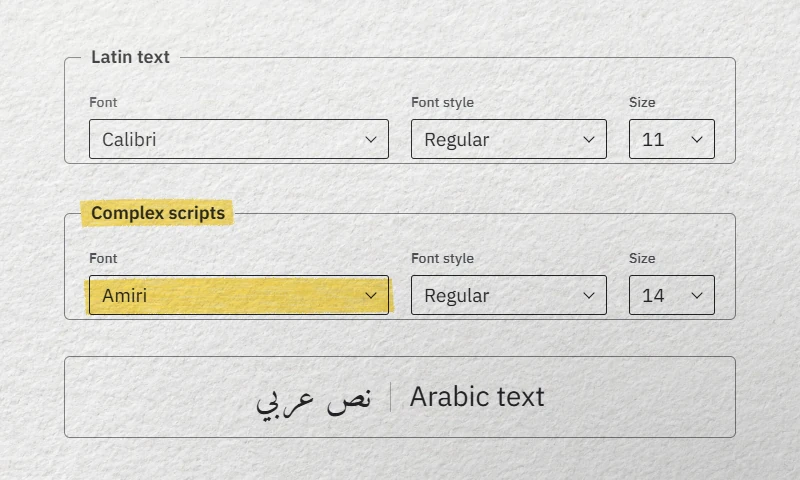
- Select the text and open the Font dialog with Ctrl + D (Cmd + D on Mac).
- Under Complex scripts, choose the font, style and size.
- Make it stick: set the complex script font in the Normal and Heading styles (Modify Style › Format › Font), or click Set As Default and choose All documents based on the Normal template.
At the same point size, Arabic usually looks smaller than Latin. In bilingual documents, give the complex script two or three points more, for example 14 pt Arabic next to 11 or 12 pt Latin, then judge on paper.
What a font must offer in Word
Traditional Arabic or Sakkal Majalla appear in Word’s font list, but Word for Microsoft 365 downloads them as Office cloud fonts. A reader with another word processor or an older Word may not have them. A free font that you install, or embed in the file, does not depend on any subscription. We measured the original files of our catalog; these are the points to check for Word.
- Embedding permission. Every font carries a flag that tells Word whether it may travel inside a document. Nearly all our families allow it; ten require the document to open read-only and one refuses (see the sharing section below).
- Mark positioning. All the fonts in the table below have the OpenType
markfeature, which places a haraka on its letter, andmkmk, which places a mark on another mark. Only a test on a vocalized line, such as الشَّمْسِ (ash-shamsi) or قَلَّ (qalla), shows whether the placement is right. - Static files or one variable file. Word has no control for variation axes: you get the styles its font menu lists. For a template with fixed weights, a family shipped as one file per weight is the simplest choice.
- Digits. If your readers expect Eastern Arabic digits (٠١٢٣), the font should contain them. Nearly all our families do.
- Shaping engine. Fonts that rely on the Graphite engine do not work in Word. SIL states that Awami Nastaliq “will not work with standard software such as Microsoft Office”; for Urdu, test an OpenType Nastaliq such as Noto Nastaliq Urdu.
| What you need in Word | Fonts to test | What the files offer |
|---|---|---|
| Fixed weights, few files | Amiri, Scheherazade New, Mirza, Almarai | One static TTF per weight: 2 for Amiri, 4 for the others |
| A wide range of weights | Lateef, IBM Plex Sans Arabic, Tajawal, FiraGO | One static TTF per weight: 7 for Lateef, IBM Plex Sans Arabic and Tajawal, 10 for FiraGO |
| A single file to install | Noto Naskh Arabic, Markazi Text, Noto Sans Arabic | One variable TTF each: weights 400 to 700 for the first two, 100 to 900 plus a width axis for Noto Sans Arabic; check which weights your Word lists |
| Persian letters and Urdu letter forms | PakType Tehreer, PakType Ajrak | One Regular each, with Arabic, Persian and Latin, plus Urdu letter forms (Urdu use not guaranteed); GPL with font exception, which permits embedding |
A downloaded font only shows up in Word once it is installed, ideally for all users: our guide on how to install Arabic fonts covers Windows, macOS and Linux. To choose by document type, from a thesis to a report, CV or form, browse our free Arabic fonts for Word documents.
Right-to-left paragraphs, lists and tables
- Paragraphs. Use the Right-to-left and Left-to-right buttons under Home › Paragraph. On a Mac, once keyboard shortcuts are enabled for the input source, Control + Cmd + ← sets right-to-left and Control + Cmd + → sets left-to-right.
- Alignment. Check it after switching: a justified paragraph stays justified; otherwise, align it right.
- Lists. Bullets and numbers follow the paragraph direction. A list stuck on the left still has left-to-right paragraphs.
- Tables. In Table Properties, set the table direction to right-to-left so the first column sits on the right.
- Styles. Build an Arabic body style with right-to-left direction, right or justified alignment and the complex script font. Applying one style is faster and safer than fixing paragraphs one by one.
Latin words inside Arabic sentences
Product names, dates and brackets inside an Arabic sentence are placed by the Unicode bidirectional algorithm, which usually gets it right when the paragraph direction is correct. If a full stop or bracket still lands at the wrong end, insert an invisible right-to-left mark after it: on Windows, switch to your Latin keyboard (on the Arabic layout, F types ب), type 200F and press Alt + X.
If the letters themselves appear disconnected or reversed, direction is not the issue: the text probably came from a PDF or an app that does not shape Arabic. Retype it, or copy it from a clean source. Our guide to Arabic letters not connecting shows how to tell, in Word itself, whether pasted text was converted to presentation forms.
Diacritics: typing and display
Harakat, الحركات (al-ḥarakāt), are the short-vowel and related marks. With the Windows Arabic (101) layout they sit on the Shift layer:
| Mark | Name | Keys (QWERTY) |
|---|---|---|
| بَ | Fatha, فتحة | Shift + Q |
| بُ | Damma, ضمة | Shift + E |
| بِ | Kasra, كسرة | Shift + A |
| بْ | Sukun, سكون | Shift + X |
| بّ | Shadda, شدة | Shift + ` |
| بً | Tanwin fath, تنوين الفتح | Shift + W |
Type the mark after its letter; for a doubled consonant with a vowel, type the letter, the shadda, then the vowel. Make sure the layout is really Arabic (101): Windows offers other Arabic layouts where the marks may sit elsewhere.
Display is the font’s job. If marks collide or float, change the complex script font, then test a word where the shadda carries a vowel, such as الشَّمْسِ: in our bench of the 109 families (browser rendering), this is where weak fonts slip. Line spacing that suits one font can be too tight for another. After a font change, check that a vocalized line does not touch the one above it; an Exactly value can clip the marks.
Word’s Find and Replace can also match text with or without kashidas or diacritics, which helps when a search for a vocalized word finds nothing.
Arabic numbers in Word: Arabic or Hindi digits
Arabic text uses two sets of digits: Western digits (0123456789), standard in the Maghreb, and Eastern Arabic digits (٠١٢٣٤٥٦٧٨٩), common in Egypt, the Levant and much of the Gulf. Word’s names are confusing: its “Arabic” digits are 0–9 and its “Hindi” digits are the Eastern ones.
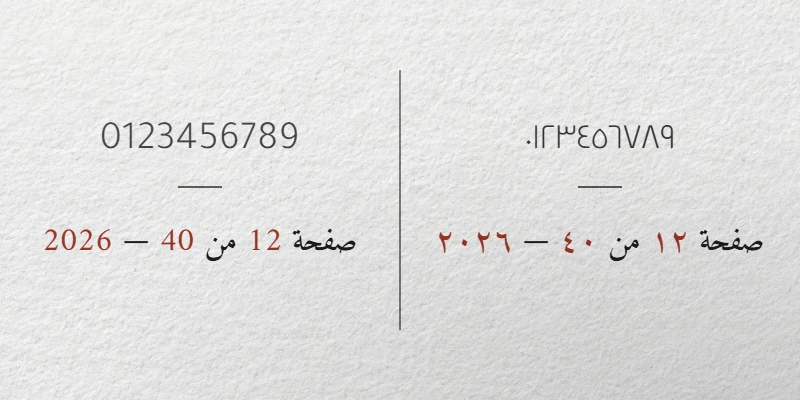
In Word for Windows, the control is under File › Options › Advanced › Show document content › Numeral, with four values: Arabic, Hindi, Context (shape depends on the surrounding text) and System. It appears once Arabic is enabled and applies to the digits 0–9 you type, not to Eastern digits typed as characters. Microsoft documents this option for Word on Windows only; on a Mac, type Eastern digits as characters.
This is a setting of Word on your computer, not of the file. The same document can show other digits on a recipient’s machine. When digit shapes matter, in contracts, invoices or exam papers, deliver a PDF, or type the Eastern digits as characters: on Windows, type 0660 to 0669 and press Alt + X, or paste ٠١٢٣ directly.
Kashida justification
Arabic can justify lines by stretching letter connections with the kashida, الكشيدة (al-kashīda), instead of widening spaces. With Arabic enabled, Word offers Justify Low, Justify Medium and Justify High for right-to-left paragraphs; Microsoft notes that Justify High uses wider kashidas than Justify Low. Look for them among the justification options of the Paragraph group; their exact place varies between versions.
The result depends on the font. For a calligraphic style or a Nastaliq, proof the justified page before printing, or keep standard justification.
Word for Mac
Word for Mac has supported right-to-left layout and editing since the March 2016 update of Office 2016 for Mac (version 15.20). Before you build a template on a Mac, open the Font dialog and check that the complex scripts section is there.
- Use the same free fonts on Mac and Windows. Most Arabic fonts bundled with one system are missing on the other, and Word substitutes a fallback without asking.
- On a Mac, font embedding is set in Word › Preferences › Save, not in an Options dialog.
- When saving as PDF, choose Best for printing for a document set in a downloaded font. Microsoft warns that the online service can only use fonts it has the legal rights to and replaces a custom font; if you use that service, embed the fonts first.
Share an editable file: font embedding
If the reader must edit, embed the fonts. On Windows: File › Options › Save, then under Preserve fidelity when sharing this document, tick Embed fonts in the file. Microsoft lists this feature for Word on Windows and for Word for Microsoft 365 for Mac; Word for the web is not on that list.
- Embed only the characters used in the document keeps the file small but limits editing in that font. Leave it unchecked if anyone will edit.
- Do not embed common system fonts skips fonts every Windows machine already has.
Word obeys the embedding flag (fsType) stored in each font. The OpenType specification defines four levels. Here is how they apply to the 109 families we host, measured on the main file of each family:
| Flag | What the specification allows | In our catalog |
|---|---|---|
| Installable (0) | Embedding, and installation on the remote system | 85 families, including every font in the table above; three of them, Arad among them, refuse partial embedding |
| Editable (8) | Embedding; the recipient can edit, format new text and save | 13 families, including Droid Arabic Naskh and most of Mohammed Isam’s Layla fonts |
| Preview & Print (4) | Embedding, but the document must open read-only | Ten of the eleven Arabeyes families, such as Tholoth |
| Restricted (2) | No embedding without the owner’s permission | Layla Diwani |
For Arad and the two other families that refuse partial embedding, leave “Embed only the characters used” unchecked. A free license does not change the flag: Layla Diwani’s license is open, but software that follows the specification will still refuse to embed it. Keep such a font for a title exported as an image, or as a PDF with “Bitmap text when fonts may not be embedded”.
You can read the flag yourself. On Windows, open Control Panel › Fonts and select the font: the details show its Font embeddability. On a Mac, Font Book shows it in the font’s information panel, though not for every font.
Share a fixed file: PDF
- Export. On Windows, File › Save a Copy (or Save As), choose PDF, then More options › Options.
- Choose the options. ISO 19005-1 compliant (PDF/A) produces an archival PDF meant to look the same on another computer, which suits theses and official files. Bitmap text when fonts may not be embedded turns text into images when a font cannot be embedded: the look is kept, but that text can no longer be searched or copied.
- Check the result. Open the PDF’s document properties in your reader and look at the font list: each Arabic font should be marked as embedded, often as an embedded subset. Then search the PDF for an Arabic word to make sure the text is real text.
Test a document before you send it
Microsoft documents the settings, not your recipient’s machine. A short test settles it:
- Create a one-page file with an Arabic heading, a fully vocalized line, a Latin brand name inside an Arabic sentence, a date in both digit styles and a two-column table.
- Save it twice: once with embedded fonts (all characters), once as PDF.
- Open both on a computer where the font is not installed, or have the recipient do it. In Word on Windows, File › Options › Advanced › Show document content › Font Substitution lists any font that is missing and what Word shows instead.
- Try to edit a line in the .docx. Word may first open it in Protected View; if the file stays read-only after Enable Editing, a Preview & Print font is probably embedded.
Still deciding between two typefaces for the job? Our guide on how to choose an Arabic font gives you a short method.